

• Identity Management
    • User Management
    • Delegation
    • IAM Self Service
    • Password Reset Self Service for users
    • Phone book
  • Authorization
    • Access Management
    • Approval Workflow
    • Single sign-on (SSO)
    • Role-based access
    • Automation
  • Systems
    • M365 connection
    • PowerShell IAM
    • Active Directory
    • Connect HR systems
  • News
  • Book your demo now
FirstWare IDM-PortalFirstWare IDM-Portal
  • Why IDM-Portal
  • About us
  • Book a demo
  • English
    • German

Share calendar permissions

Authorization Management |


Sharing calendar permissions with colleagues enhance collaboration among employees in companies. It simplifies the process of scheduling meetings for larger teams and allows for efficient delegation of tasks, such as having a personal assistant create appointments.

Index

  • Which calendar permissions can we share?
  • How to share calendar permissions?
  • Release calendar authorizations with IDM-Portal
  • Manage calendar authorisations via Powershell
  • Summary
  • More about FirstWare IDM-Portal

Which calendar permissions can we share?

Technically, the calendar in an Exchange mailbox is a special folder within the user’s mailbox. Therefore, all references below will pertain to authorizations for the calendar folder.

Here is an overview of the possible authorizations that can be assigned:

Name

Description

None

User has no authorizations for the calendar folder.

Owner

Users can create, read, edit and delete all items in the calendar folder and create subfolders. The user is both the folder owner and the folder contact.

PublishingEditor 

User can create, read, edit and delete all items in the folder and create subfolders.

PublishingAuthor

Users can create and read all items in the folder and create subfolders. They can also only edit and delete items that they have created themselves.

Author

Users can create and read all items in the folder, and only edit and delete items that they have created themselves.

NonEditingAuthor

Users can create and read all items in the folder, and only delete items that they have created themselves.

Reviewer

User can read all items in the folder.

Contributor

User can create items in the folder. The contents of the folder are not displayed.

FreeBusyTimeOnly

User can only display free/busy times within the calendar.

FreeBusyTimeAndSubjectAndLocation

Users can display the free/busy time within the calendar, as well as the subject and location of the appointments.

Custom

User has customised access permissions for the folder.

How to share calendar permissions?

Each user can share their calendar with anyone they choose and assign the authorizations they prefer.
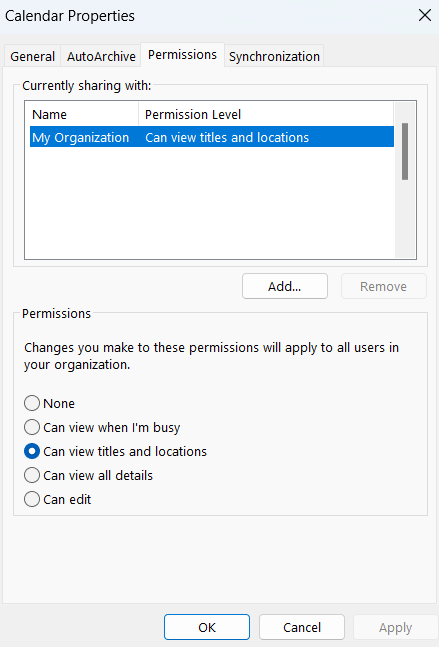
However, it is also possible to centrally manage the authorizations for the calendars of the individual mailboxes, e.g. also for group calendars. This is usually reserved for administrators only.

The following documentation from Microsoft explains this in more detail:

https://learn.microsoft.com/en-us/outlook/troubleshoot/calendaring/how-to-share-calendar-and-contacts

To distribute the administrator’s workload more evenly, certain tasks should be delegated. Assigning calendar permissions in Exchange can be quite tedious for the administrator and often cannot be done as precisely as desired.

Example: When integrating a trainee into an administrator’s daily tasks, it is important to determine what the trainee should be allowed to do and which systems they should have access to. Security and data protection tasks must be handled carefully. Initially, it makes sense to allow the trainee to manage specific calendar authorization types for a select group of people. An audit helps monitor and track the assignment of these authorizations.

This topic can be implemented more quickly and easily with IDM-Portal.

Release calendar authorizations with IDM-Portal

All user authorizations can be managed through IDM-Portal. For example, we can limit the group of people for whom the trainee is allowed to set calendar authorizations and specify the types of authorizations they can assign.
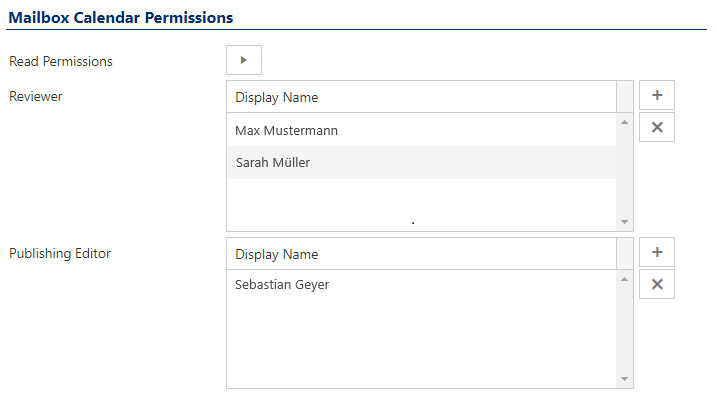
Level of calendar authorisations in the IDM-Portal

Users and groups can also be precisely configured for permissions allocation.
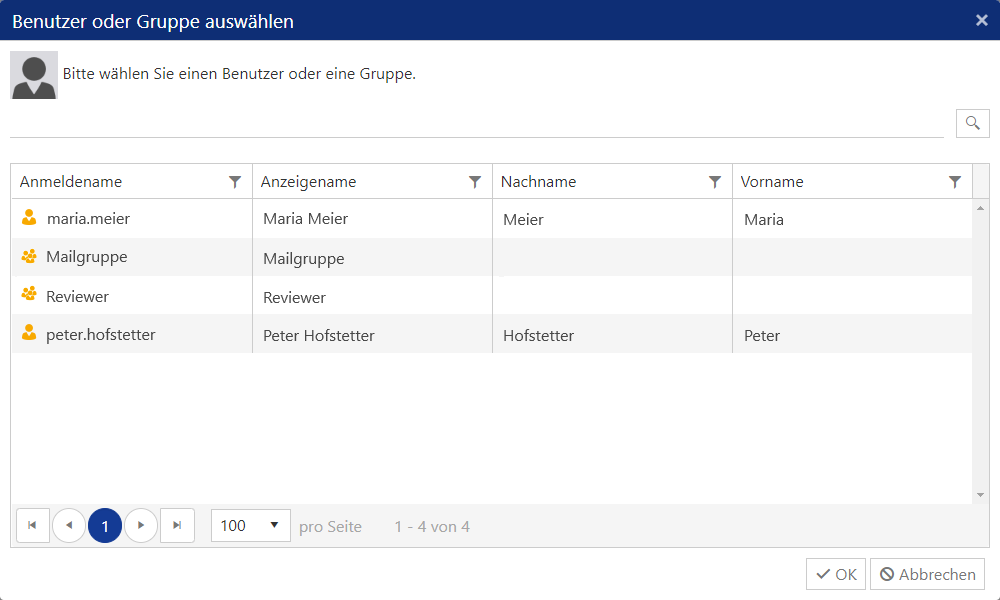
Assignment of users or groups to the respective calendar authorisation

Manage calendar authorisations via Powershell

We can share calendar permissions not only via Outlook or Exchange Admin Centre, but also via Powershell.

To read the permissions of a mailbox, first connect to Exchange Online and then execute the following command:

https://learn.microsoft.com/en-us/powershell/module/exchange/get-mailboxfolderpermission?view=exchange-ps

When specifying the Identity parameter, consider the language setting of the Exchange environment. This results in the parameter:

  • german: max.muster:\Kalender
  • english: max.muster:\Calendar
1
2
<strong>Code:
[su_table]</strong>
1
2
3
4
5
6
7
<span style="font-size: 8pt;">$permissions = @{
reviewer = @();
}
try {
<span style="color: #0000ff;">     Connect-ExchangeOnline ...</span>
     <span style="color: #ff0000;">$mailboxFolderPermissions</span> = <span style="color: #0000ff;">Get-EXOMailboxFolderPermission</span> -Identity <span style="color: #ff0000;">"&lt;MailboxId&gt;:\Kalender"</span> -ErrorAction SilentlyContinue
    </span>
1
2
3
4
5
6
7
8
9
10
11
12
13
14
15
16
17
18
19
20
21
22
<span style="font-size: 8pt;">    if (<span style="color: #ff0000;">$null</span> -ne <span style="color: #ff0000;">$mailboxFolderPermissions</span>) {
<span style="color: #ff0000;">          $mailboxFolderPermissionsReviewer</span> = <span style="color: #ff0000;">$mailboxFolderPermissions</span> | <span style="color: #0000ff;">Where</span> { <span style="color: #ff0000;">$</span>_.AccessRights -eq <span style="color: #ff0000;">"Reviewer"</span>}
           if (<span style="color: #ff0000;">$null</span> -ne <span style="color: #ff0000;">$mailboxFolderPermissionsReviewer</span> -and <span style="color: #ff0000;">$mailboxFolderPermissionsReviewer</span>.Count -gt 0) {
                         <span style="color: #ff0000;">$mailboxFolderPermissionsReviewerUsers</span> = @()
                         foreach (<span style="color: #ff0000;">$mailboxFolderPermissionsReviewerEntry</span> in <span style="color: #ff0000;">$mailboxFolderPermissionsReviewer</span>) {
                         <span style="color: #ff0000;">$mailboxFolderPermissionsReviewerUsers</span> += </span><span style="font-size: 8pt;"><span style="color: #ff0000;">$mailboxFolderPermissionsReviewerEntry</span>.User.UserPrincipalName
                         }
                        if (<span style="color: #ff0000;">$null</span> -ne <span style="color: #ff0000;">$mailboxFolderPermissionsReviewerUsers</span> -and <span style="color: #ff0000;">$mailboxFolderPermissionsReviewerUsers</span>.Count -gt 0) {
                                 <span style="color: #ff0000;">$permissions</span>[<span style="color: #ff0000;">"reviewer"</span>] = <span style="color: #ff0000;">$mailboxFolderPermissionsReviewerUsers</span>
                    }
               }
          }
          else {
                 <span style="color: #ff0000;">$permissions</span> = <span style="color: #ff0000;">$null</span>
         }
}
catch {
      <span style="color: #ff0000;">$permissions</span> = <span style="color: #ff0000;">$null</span>
}
finally {
       <span style="color: #0000ff;">Disconnect-ExchangeOnline</span>
}</span>
1
[/su_table]

To set a calendar authorization, the administrator uses the PowerShell command Add-MailboxFolderPermission:

https://learn.microsoft.com/en-us/powershell/module/exchange/add-mailboxfolderpermission?view=exchange-ps

1
2
<strong>Code:
</strong>
1
2
3
4
5
6
7
8
9
10
<span style="font-size: 8pt;">try {
      <span style="color: #0000ff;">Connect-ExchangeOnline ...
</span>       <span style="color: #0000ff;">Add-MailboxFolderPermission</span> -Identity <span style="color: #ff0000;">"&lt;MailboxId&gt;:\Kalender"</span> -User <span style="color: #ff0000;">"&lt;User&gt;"</span> -AccessRights <span style="color: #cc99ff;">Reviewer</span> -Confirm:<span style="color: #ff0000;">$false</span>
}
catch {
      <span style="color: #339966;"># Error</span>
}
finally {    <span style="color: #0000ff;">
       Disconnect-ExchangeOnline</span>
}</span>
1
 

Removal is similar to setting the calendar authorization:

https://learn.microsoft.com/en-us/powershell/module/exchange/remove-mailboxfolderpermission?view=exchange-ps

Code:

1
<span style="font-size: 8pt;">try {</span>

      Connect-ExchangeOnline …
      Remove-MailboxFolderPermission -Identity “<MailboxId>:\Kalender” -User “<User>” -Confirm:$false
}
catch {
      # Error
}
finally {
    Disconnect-ExchangeOnline }

Summary

Delegating calendar authorizations for a mailbox through Microsoft board tools can be challenging, confusing, and requires expertise. Moreover, granting users access to manage calendar permissions directly in Exchange isn’t always ideal.

IDM-Portal offers a solution to swiftly and effortlessly manage calendar authorizations without the need for users to access Exchange. Additionally, an audit feature ensures security and traceability of administrative actions.

More about FirstWare IDM-Portal

IDM-Portal - Hybrid IAM SolutionFirstWare IDM-Portal is a customized solution for Identity and Access Management (IAM).
It enables the automated management of users and their authorizations, whether on-premises or in the cloud.

The solution integrates all important requirements of the IAM process and enables fast, centralized access to identity and directory services.

Tags: DelegationExchangeKalenderberechtigungOutlookPowerShell
Share

Search

Latest Posts

  • Connecting HR Systems and IAM: a practical case in the public sector
  • Digitalize onboarding process: Efficiently managing new hires
  • What happens to unaccepted guest accounts in Microsoft Entra?
  • Check and regularly validate group memberships for ISO compliance
  • How companies save IT costs in user management

Categories

  • Authorization Management
  • Compliance
  • General
  • Identity Management
  • Projects
  • Systems


FirstAttribute

Contact Info

  • FirstAttribute AG
  • Am Büchele 18, 86928 Hofstetten, Germany
  • +49 8196 998 4330
  • https://firstattribute.com/

Themen

  • Contact
  • About us
  • Our customers
  • Cooperation
  • Press
  • Our solutions
  • News

Latest News

  • Connecting HR Systems and IAM: a practical case in the public sector
  • Digitalize onboarding process: Efficiently managing new hires
  • What happens to unaccepted guest accounts in Microsoft Entra?
  • Check and regularly validate group memberships for ISO compliance
  • How companies save IT costs in user management
  • Reduce Microsoft license costs for external employees

© 2026 · FirstAttribute AG.

  • Terms of Use & EULA
  • Legal Information
  • Privacy Policy
  • Contact
Prev Next