

Passkeys: The Future of Authentication
A passkey is an authentication method based on the FIDO2 standard specification. Unlike traditional passwords, a passkey securely stores cryptographic key pairs on a device, such as a smartphone or a hardware token. The private key remains on the device, while the public key is registered on the server. This allows for passwordless login that is both more secure and user-friendly.
Many online services now offer login with a passkey instead of a username and password. This includes Entra ID and thus Microsoft 365. Microsoft has also integrated passkey authentication into Windows 11 and significantly improved it with the Windows 11 24H2 update.
Index
Passkeys versus Passwords
While passwords have long been the standard, increasing security risks have led to a shift towards multi-factor authentication (MFA) and biometric solutions. Passkeys are the next step in this evolution, combining the benefits of biometrics and cryptographic methods.
Passwords are vulnerable to phishing, brute-force attacks, and data leaks. Passkeys eliminate these vulnerabilities as they do not need to be transmitted or stored. For users, passkeys offer increased convenience as they can often be used with simple biometrics like fingerprint or facial recognition, without the need for complex passwords.
If you want to know how to check password policies in an AD domain, read our article: Check password rules in Active Directory.
Functionality and Integration of Passkeys in Microsoft Environments
Passkeys can be seamlessly integrated into Microsoft environments such as Windows or Entra ID (formerly Azure AD) into existing authentication processes. Users register their device where the private key is securely stored. Upon login, the system presents a cryptographic challenge that the device signs with the private key, ensuring secure and fast authentication.
This works equally well whether using multiple devices in the office, mobile, or working from home. For users, this means a simple and intuitive login that ends reliance on passwords. IT departments benefit from increased security and reduced support requests, as passwords no longer need to be reset or managed. Additionally, the risk of data theft is significantly minimized.
Passkeys are a key technology for zero-trust strategies. Since no sensitive data is transmitted, they are immune to phishing attacks. Combined with multi-factor authentication (MFA), passkeys create a robust security architecture that protects both user accounts and corporate resources.
Implementing Passkeys in Entra ID
Entra ID and thus Microsoft 365 are particularly well-suited for passkeys, as users often work with the system mobile and access services from multiple locations with different devices. The introduction of passkeys in Entra ID involves several steps:
- Check prerequisites: Ensure your environment is FIDO2-compliant.
- Configure Entra ID: Enable passwordless logins in authentication settings.
- Register devices: Allow users to register compatible devices such as smartphones or security keys.
- Train users: Educate your users about the use of passkeys.
Successful implementation requires up-to-date software versions and a clear policy for use. IT administrators should also conduct regular audits to ensure passkeys are used correctly.
Setting Up and Using Passkeys with Windows Hello
Setting Up Passkeys with Windows Hello
Passkeys for Microsoft accounts are available and allow passwordless login to Microsoft 365 applications. With this method, users can forego traditional passwords and instead rely on the security of Windows Hello or a physical security key. Windows Hello supports, among other things, facial recognition, fingerprint scanners, or PIN codes, which can be directly linked to the Microsoft account. The setup differs slightly from the use of accounts from Entra ID and mainly concerns users who want to log in to their Windows PC with Windows Hello and integrate passkeys into the operating system. We will discuss the setup with Entra ID in more detail in a later section.
Configuring Passkeys
Configuring passkeys begins in the account settings of the Microsoft account. You can find these either via the user icon at the top right in Microsoft 365 or directly at “account.microsoft.com“. Make sure you are not logged into an Entra ID account. In this section, we will focus on implementing passkeys in Windows 11 without linking them to Entra ID.
After logging in, go to the “security” section and select “additional security options.” Click on “manage how you sign in.” In the window, you will see the current sign-in options. You can add more sign-in services, for example, passkeys, with “add a new way to sign in or verify.”
Selecting Sign-In Methods and Storage
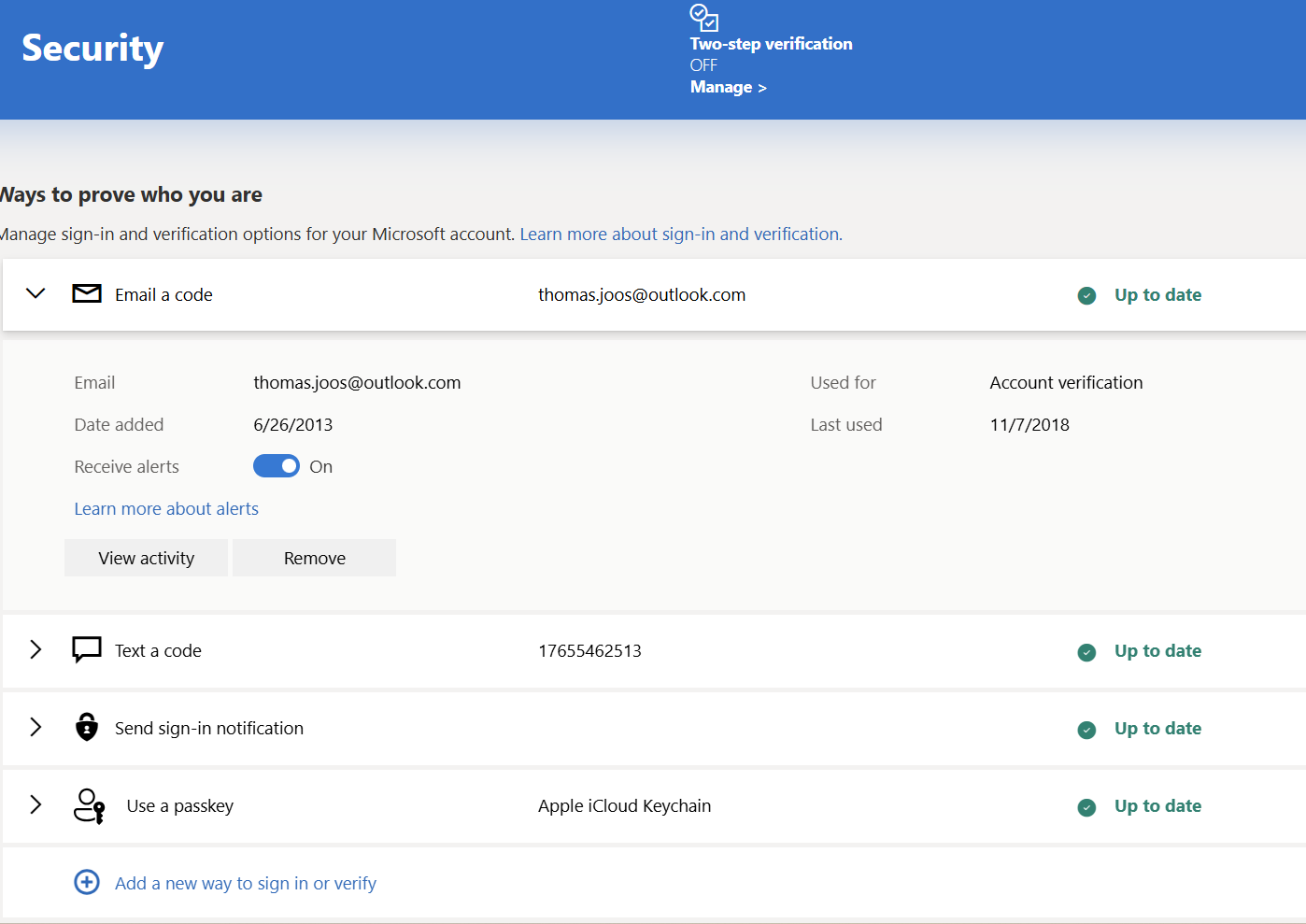
Set up passkeys with Windows Hello
The dialog that appears offers a selection of several methods. Here, you choose “facial recognition, fingerprint, PIN, or security key.” Then the wizard that guides you through the configuration starts. The selection of options in the next window varies depending on the PC and its equipment. If a device supports fingerprint or facial recognition, these biometric methods will appear.
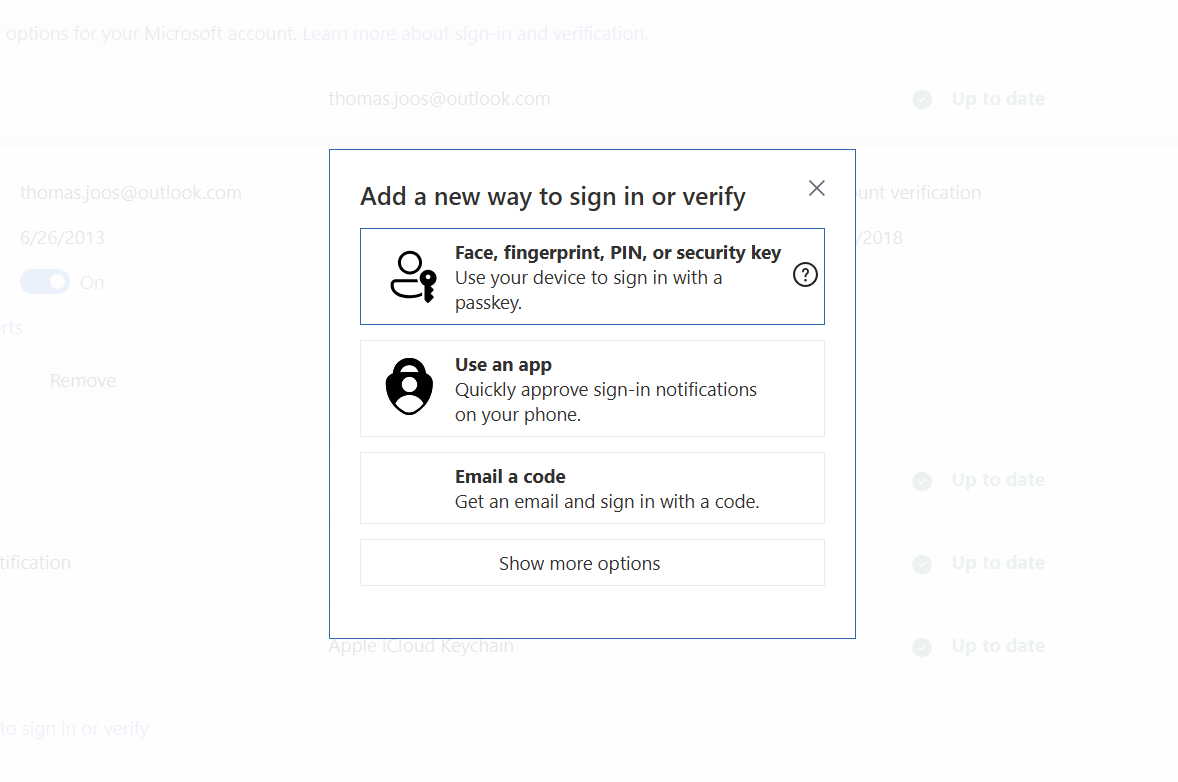
Select different options to sign in with Windows Hello and passkeys
Availability and Storage of Passkeys
By storing the passkey in the Microsoft account, it is available on all devices where you sign in with the same Microsoft account. You only need to go through the Windows Hello setup once and can then access all passkeys stored in the Microsoft account. Windows Hello also allows the storage of passkeys on mobile storage devices or smartphones linked to the PC. This storage option is shown by the setup wizard when such a device is connected to the PC.
Using and Managing Passkeys
Once the primary key or passkey has been added, a message appears, and you can use it to sign in in the future. For example, if you choose the “iPhone, iPad, or Android device” option, a QR code will appear that needs to be scanned with the smartphone. On the smartphone, you can then select which app to store the key in. This can be, for example, an authenticator app or, in the case of iPhones, the new “Passwords” app. After saving, the process is completed, and the sign-in option is saved in the Microsoft account.
Through “additional security options,” you can convert the account to a passwordless account on the account.microsoft.com page if needed. After that, authentication will only work through Windows Hello, a passkey, or the authenticator app.
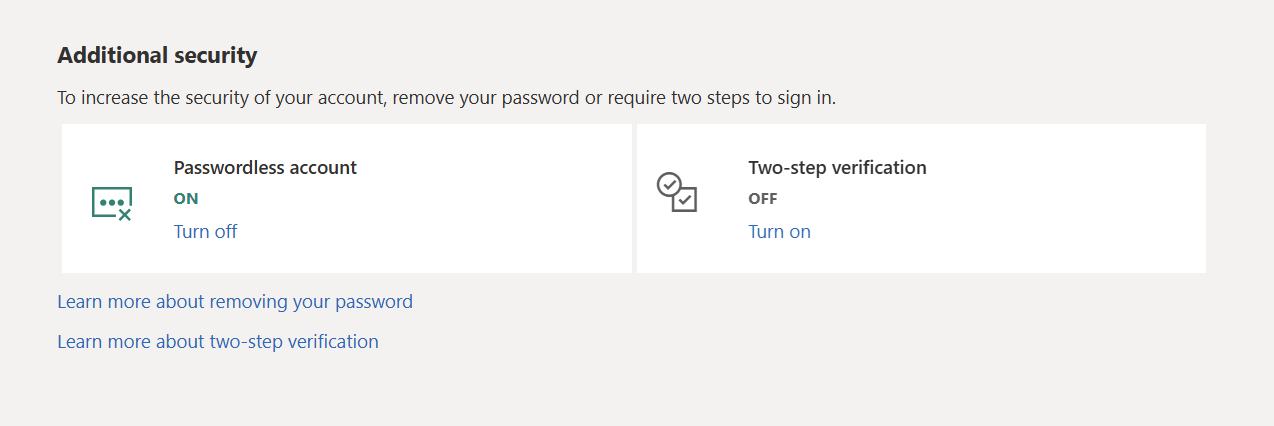
Additional security options for passkeys
After setting up the passkey, when users log into their Microsoft account, they click on the respective sign-in option they want to use in the login dialog. Besides username or password authentication, users can choose the option “Use your face, fingerprint, PIN, or security key instead“. By selecting this option, users can sign in with Windows Hello and use their Microsoft account from the cloud.
Managing Passkeys in Windows 11
Regardless of where you use passkeys, you can manage the main keys in Windows 11, even for multiple services. An overview of the stored passkeys can be found in the Settings app under Accounts => Main Keys. They can be deleted here if no longer needed.
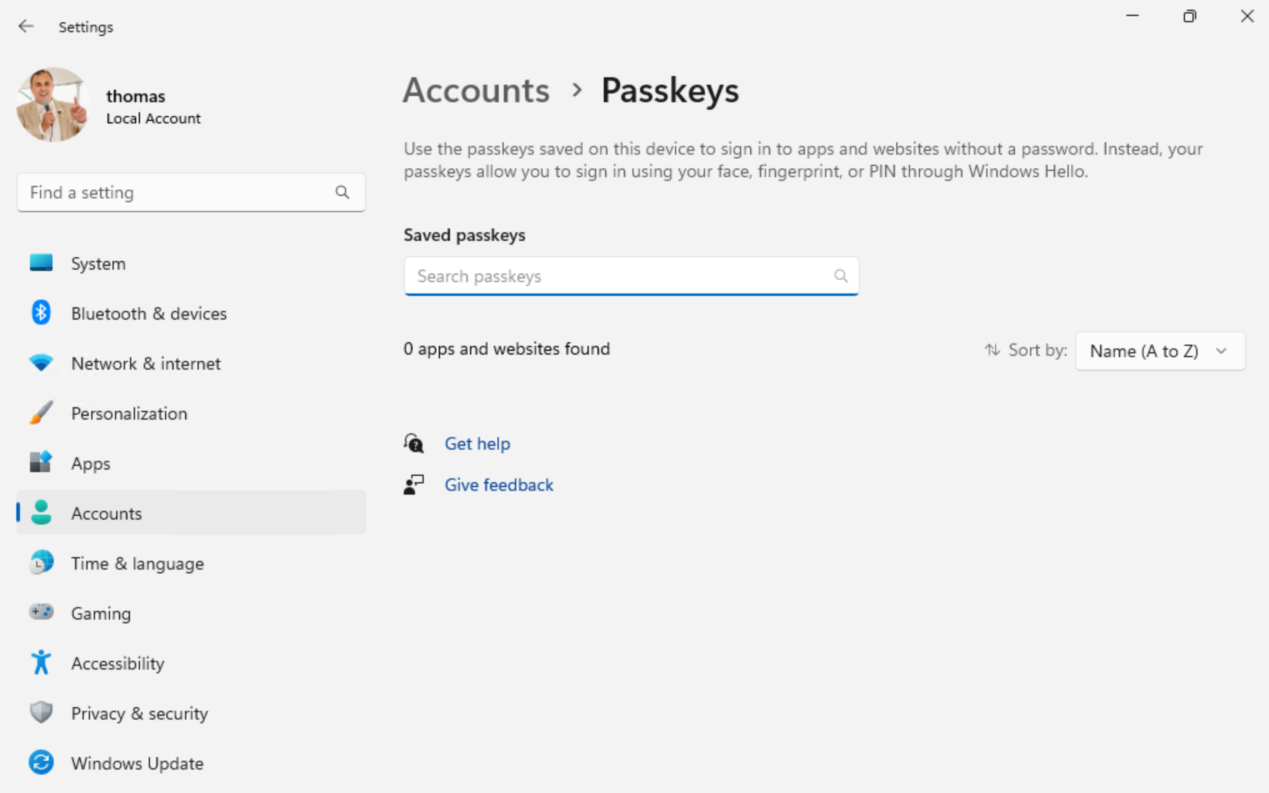
Windows 11 offers integrated management of passkeys
Windows 11 24H2 can synchronize the keys between multiple PCs if the same Microsoft account is used. You need to log in to the various PCs with the same Microsoft account. Set up passkey sign-in with Windows Hello as shown in this article, and Windows 11 24H2 will try to use Windows Hello with the corresponding settings when logging in with the Microsoft account on other PCs. Alternatively, a FIDO2 key can be used as storage and applied on multiple computers. This also works without Windows 11 24H2.
With the advancement of passkeys in Windows 11 24H2, Microsoft is focusing on an optimized and more user-friendly solution for passwordless authentication. Building on the progress made so far, the new version offers additional features and extended compatibility with third-party solutions. With Windows 11 24H2, Microsoft supports passkeys from third parties, allowing users to use passkeys stored in Apple iCloud Keychain or other password managers directly in Windows.
Enhanced Security with Windows Hello for Business
Secure Authentication for Enterprises
Passkeys already form the foundation for secure, passwordless authentication in private and hybrid environments. Windows Hello for Business extends this technology to meet the specific needs of enterprises. This solution extends the features of Windows Hello with specific security and management options for corporate networks, Entra ID, and hybrid cloud environments.
Windows Hello for Business enables seamless and passwordless authentication to Windows workstations, corporate resources, and cloud services. The solution combines biometric methods like facial recognition and fingerprint with hardware-based security, which relies on TPM (Trusted Platform Module) or virtual smart cards. This ensures that the information needed for authentication always remains local on the device, providing protection against transmission path attacks.
Setup and Management in Microsoft Intune
Configuring Windows Hello for Business is ideally done centrally through Microsoft Intune. Administrators first need to enable the use of passkeys in the respective Azure subscription via the Entra Admin Center.
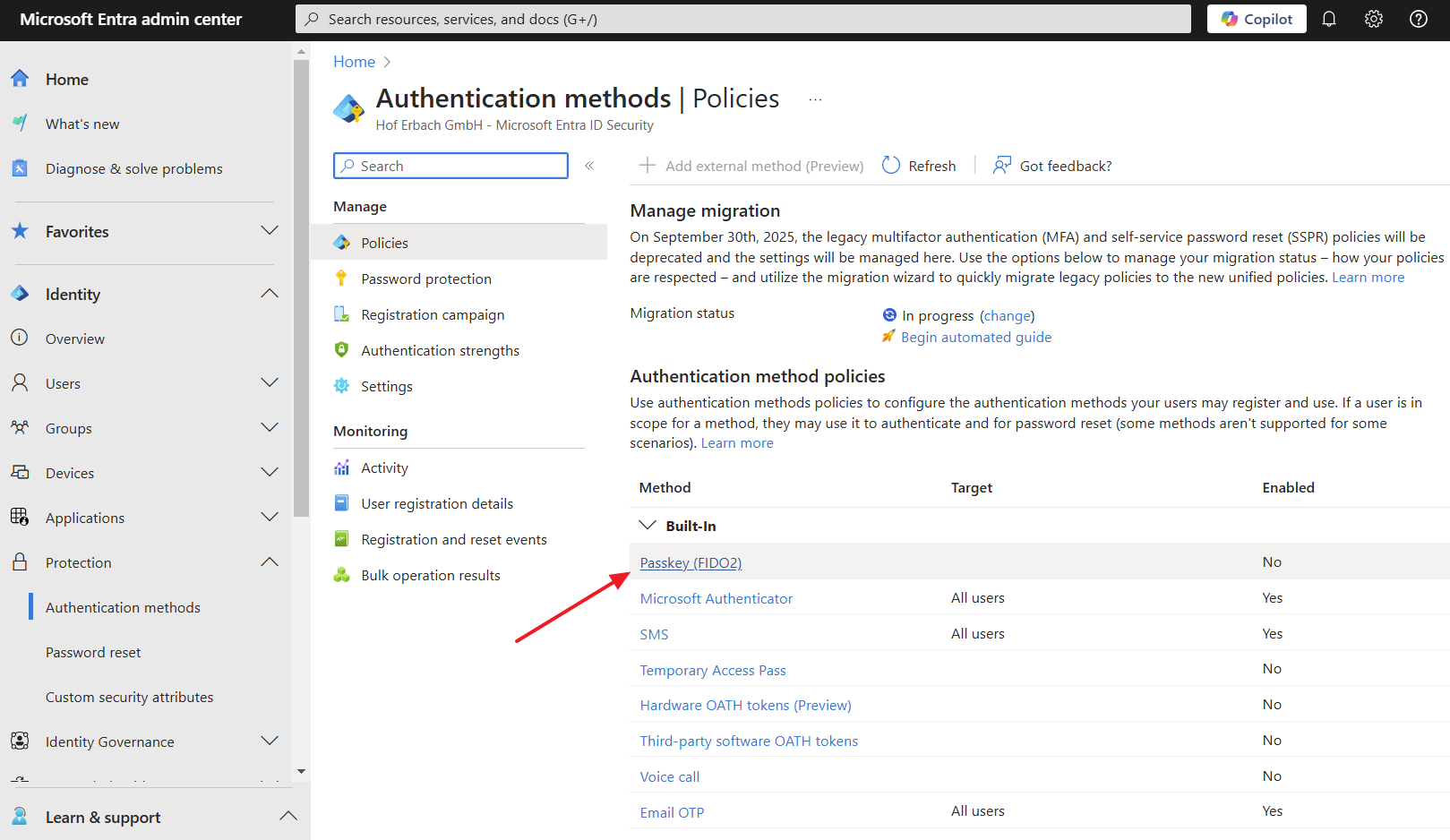
Passkeys are enabled for Entra ID in the Entra Admin Center.
IT administrators deploy and centrally manage security policies uniformly. In the Intune Admin Center, they enable the feature under “Devices -> Enrollment -> Windows Hello for Business” and set the option “Configure Windows Hello for Business” to “Enabled”.
Under “Endpoint Security -> Manage -> Account Protection“, they create security policies. They select “Windows” as the platform and “Account Protection” as the profile type to configure PIN lengths, character types, and other security specifications in detail. They then assign the created policies to individual devices or user groups so that the settings take effect automatically.
Windows Hello: User Setup
After deploying the policies, the Windows Hello setup wizard starts on assigned devices when the user logs in. The wizard guides users through the process of biometric registration or setting a PIN. Users must set up registration on each device separately while the system automatically applies the specified security policies.
After successful setup, users can access resources in the cloud or locally without needing to authenticate again. Login is done through Windows Hello or other configured methods such as the Authenticator app. Administrators can use Conditional Access when needed to require additional multi-factor authentication for specific actions or applications.
Managing Connected Devices
Once a device is successfully registered, it becomes visible in the Intune Admin Center under “Devices”. Through the “Company Portal” app, users gain access to shared resources and applications or can retrieve information about their devices. This central management allows IT administrators to continuously monitor and adjust the security and compliance of all connected devices.
Secure Management with the IAM Solution IDM-Portal
FirstAttribute AG’s IDM-Portal offers a user-friendly interface for Authorization Management, enabling administrators to keep track of the management of access keys. In other words, companies can precisely control which devices and users should, can, or must use passkeys.
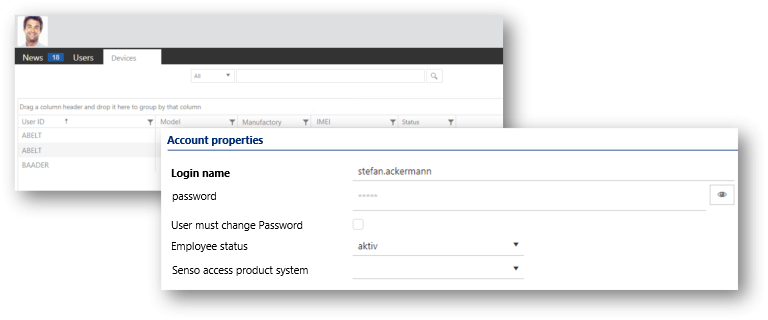
Manage Intune devices with the IDM-Portal
Technically, the IDM-Portal establishes a direct connection to Intune. This allows administrative tasks to be carried out through an intuitive interface in the IDM-Portal and automatically synchronized in Intune. The IDM-Portal also automates a significant part of user management by automatically granting or revoking permissions based on changes in attributes, groups, or roles. This makes access key management not only more efficient but also fully secured.
More about FirstWare IDM-Portal
 The FirstWare IDM-Portal by FirstAttribute is an integrated solution for identity and access management (IAM) that enables automated management of users and their permissions, whether on-premises or in the cloud.
This portal integrates all aspects of identity and access management and enables centralized access to identity and directory services.
